
Free · No app store · 20 seconds
Install Wrestling Headliner on your phone, tablet or computer. It opens full-screen like a regular app, loads faster, works with a weak signal, and sends breaking-news alerts.
✓ You're using the app. You can turn on alerts with the Get alerts button.
How to install on Android
-
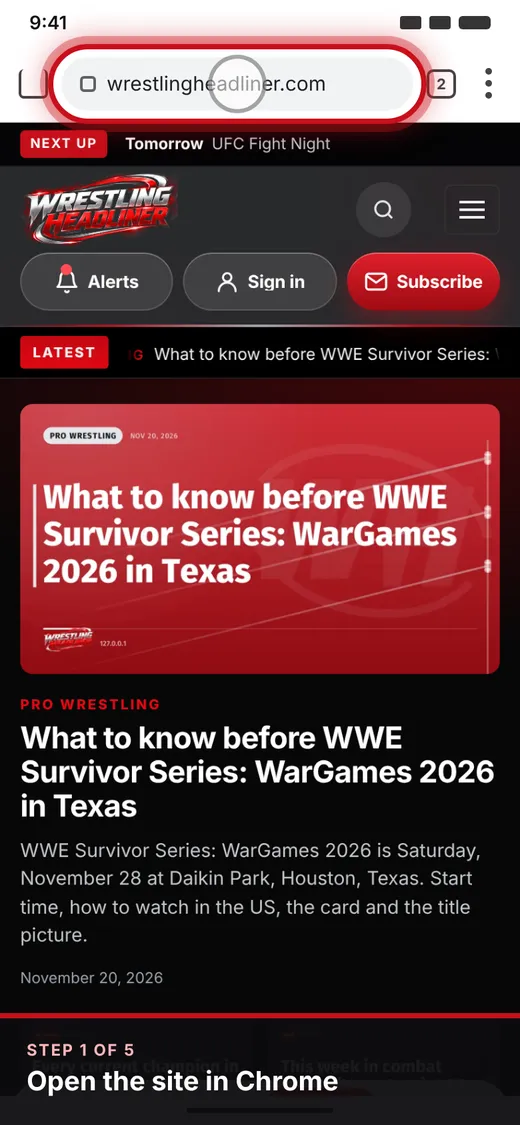 Step 1
Open the site in Chrome
Go to wrestlingheadliner.com in the Chrome browser on your phone.
-
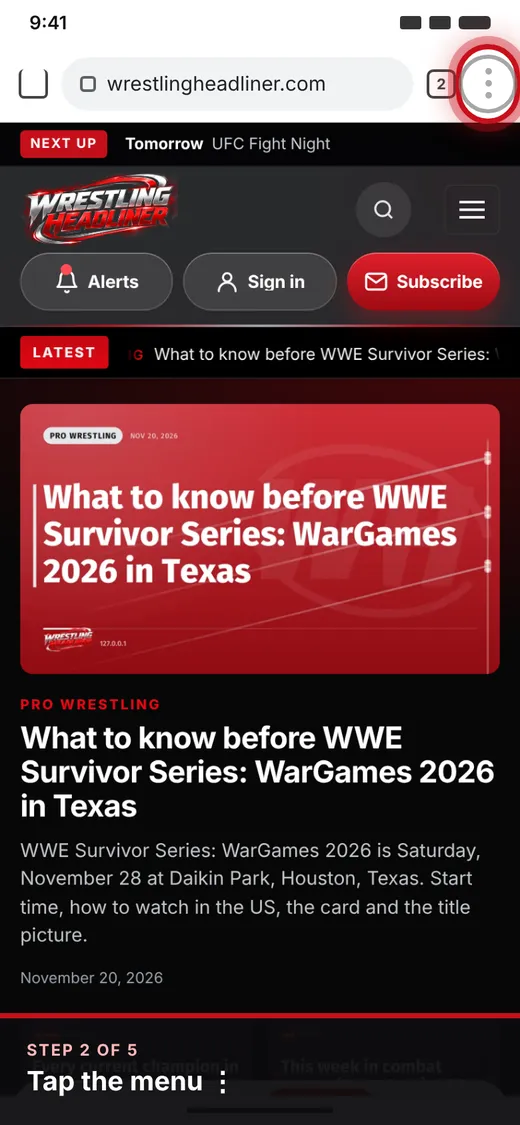 Step 2
Tap the menu
Tap the three dots ⋮ in the top-right corner of Chrome.
-
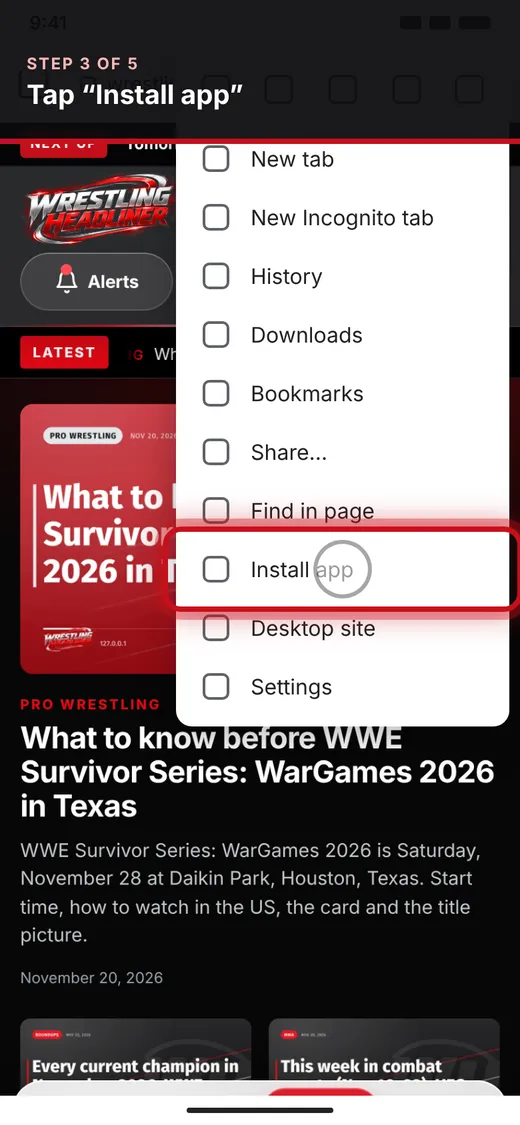 Step 3
Tap “Install app”
Choose Install app. On some phones it is called Add to Home screen.
-
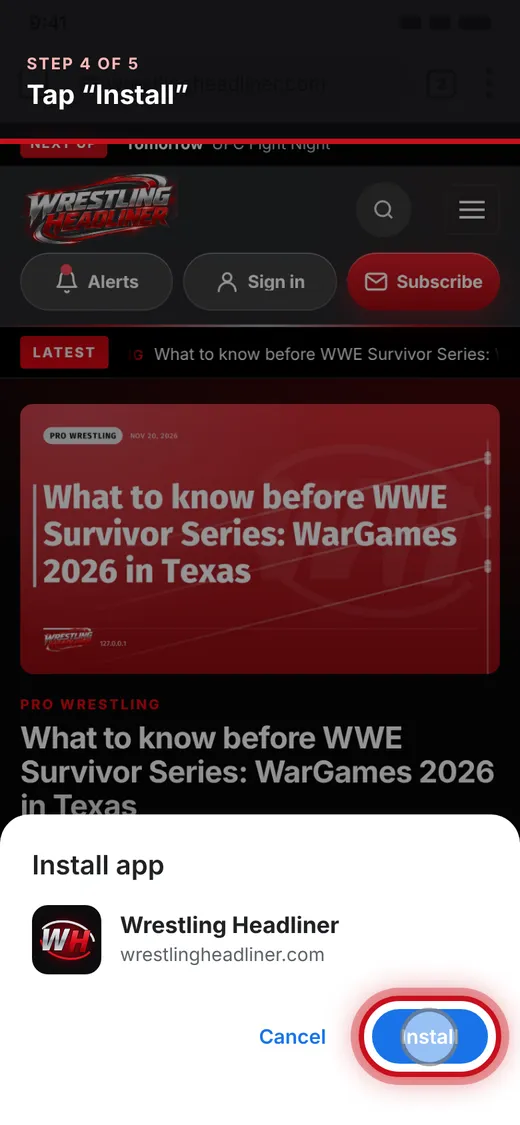 Step 4
Tap “Install”
Confirm with Install. The Wrestling Headliner icon appears on your home screen and in your app drawer.
-
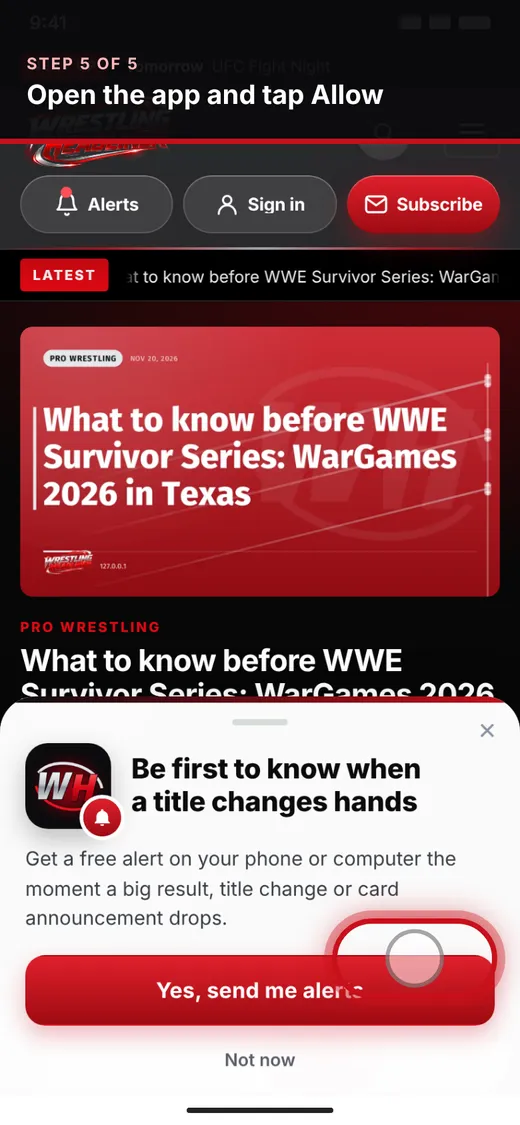 Step 5
Open it and allow alerts
Open the app from your home screen, tap Get alerts and choose Allow to get breaking news.
Using Samsung Internet? Tap the menu ≡ → Add page to → Home screen. Using the button at the top of this page installs it in one tap when your browser supports it.
How to install on iPhone & iPad
-
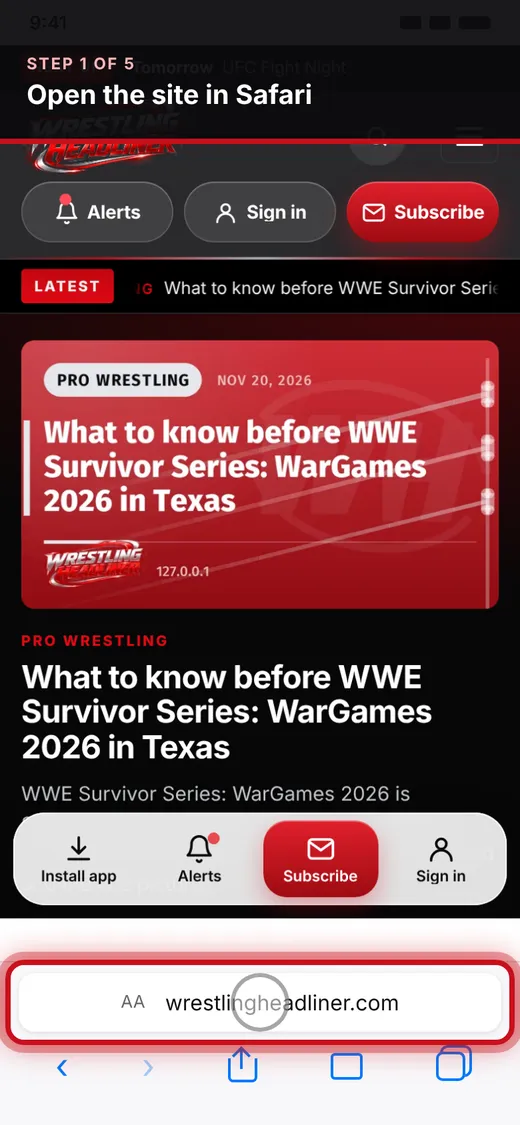 Step 1
Open the site in Safari
Go to wrestlingheadliner.com in Safari. (Chrome and other browsers also work on iOS 16.4+, via their Share button.)
-
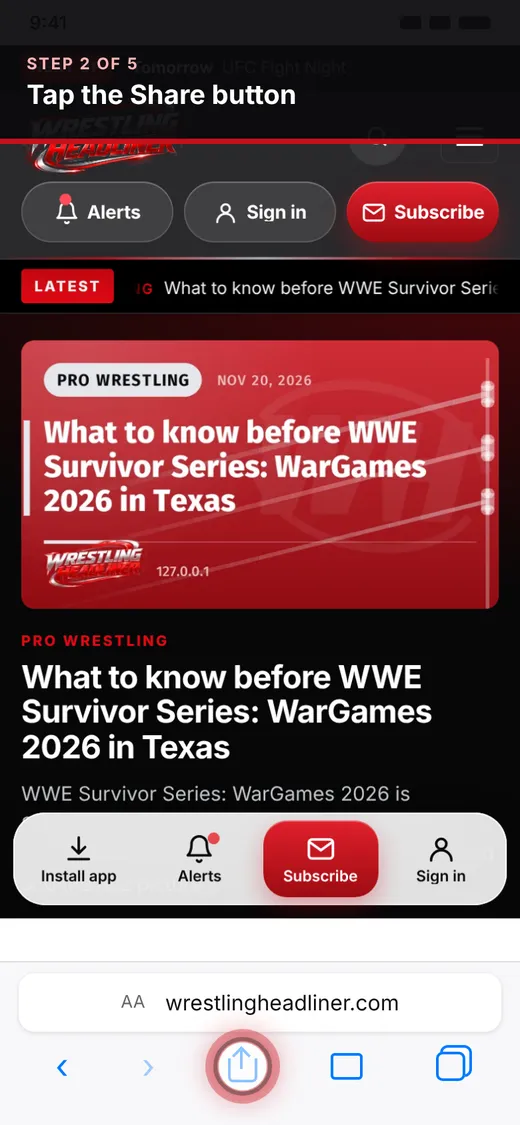 Step 2
Tap the Share button
Tap Share — the square with an arrow pointing up. On iPhone it is in the bottom bar (tap ••• first if you don't see it); on iPad it is at the top right.
-
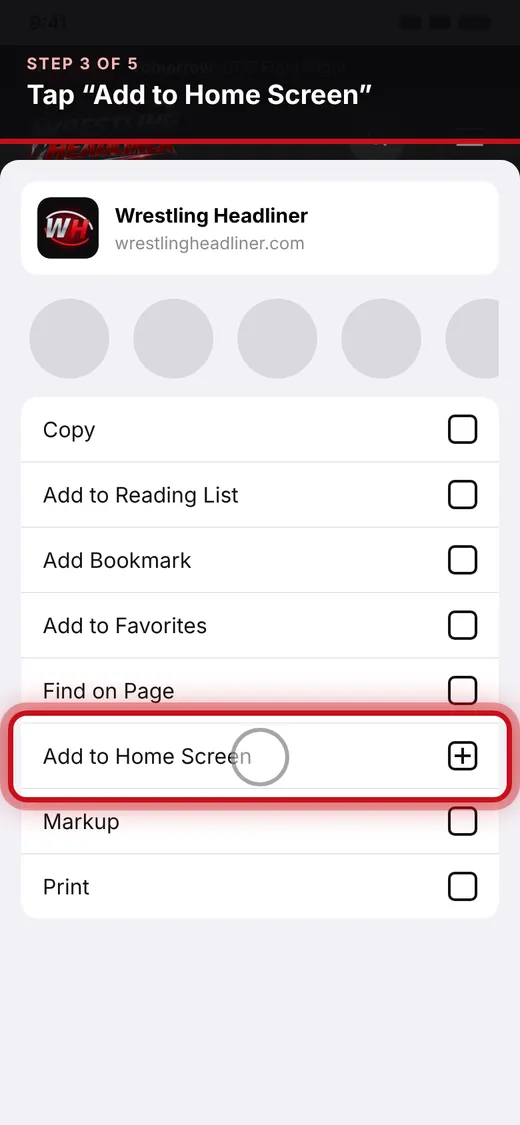 Step 3
Tap “Add to Home Screen”
Scroll down the list and tap Add to Home Screen ⊞.
-
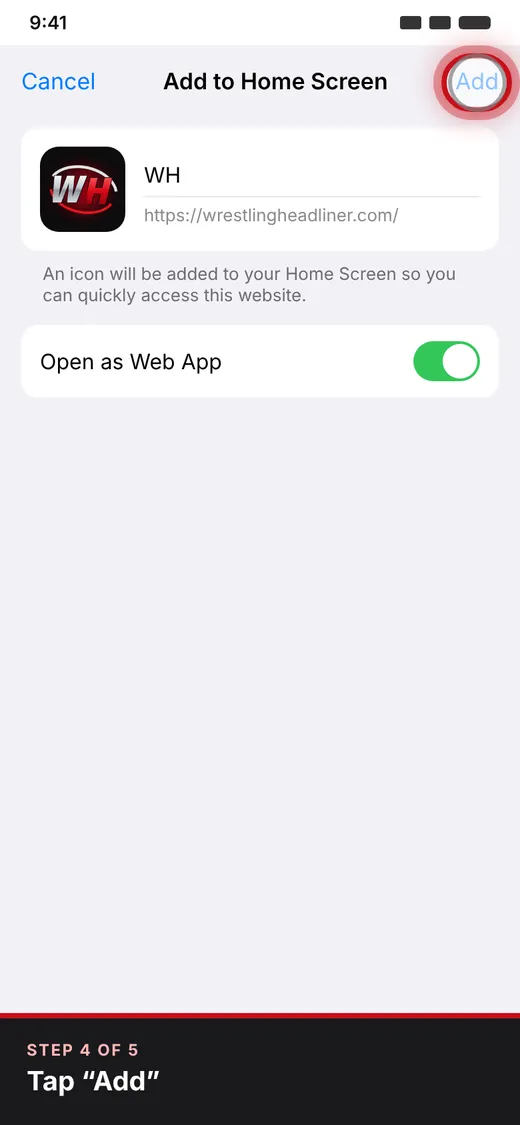 Step 4
Tap “Add”
Check the name and tap Add in the top-right corner. If you see Open as Web App, leave it switched on.
-
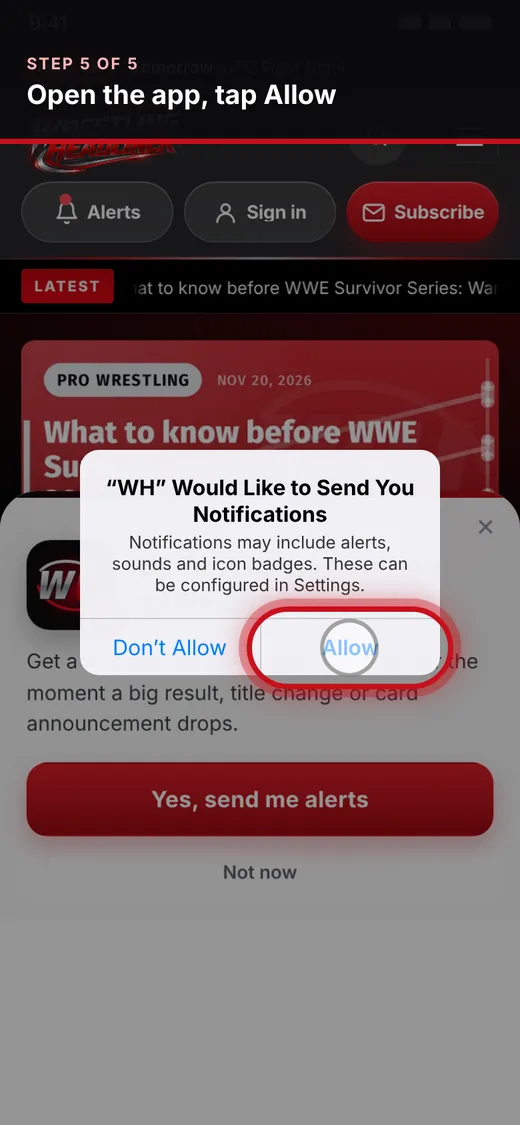 Step 5
Open it and allow alerts
Open WH from your Home Screen, tap Get alerts, then Allow. On iPhone and iPad, news alerts only work in the installed app.
Don't see Add to Home Screen? Scroll to the bottom of the share list, tap Edit Actions and add it. Alerts need iOS or iPadOS 16.4 or later (Settings → General → About).
How to install on Computer
-
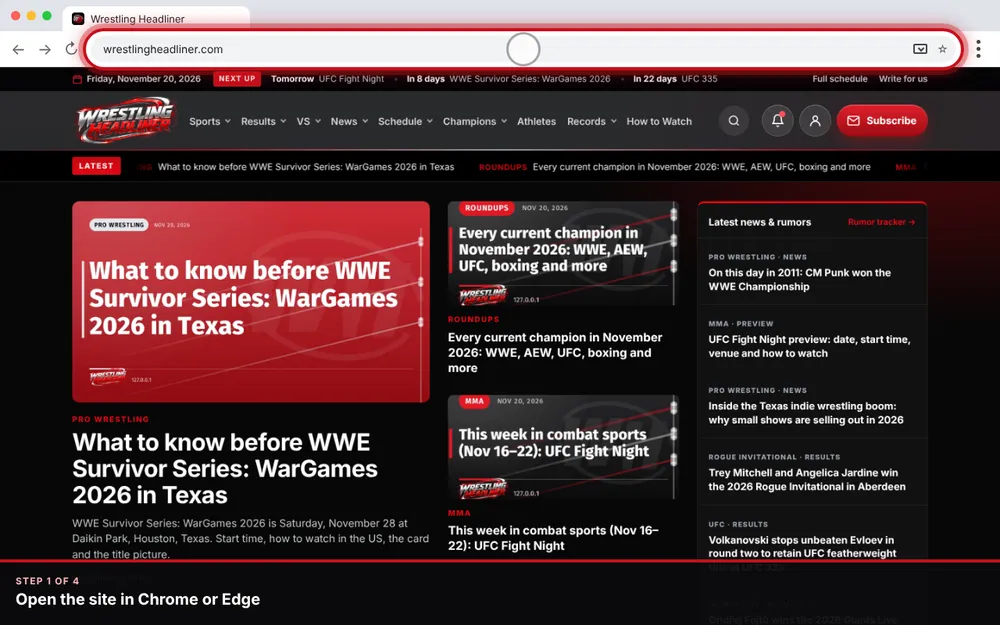 Step 1
Open the site in Chrome or Edge
Go to wrestlingheadliner.com in Google Chrome or Microsoft Edge on Windows, Mac, Linux or Chromebook.
-
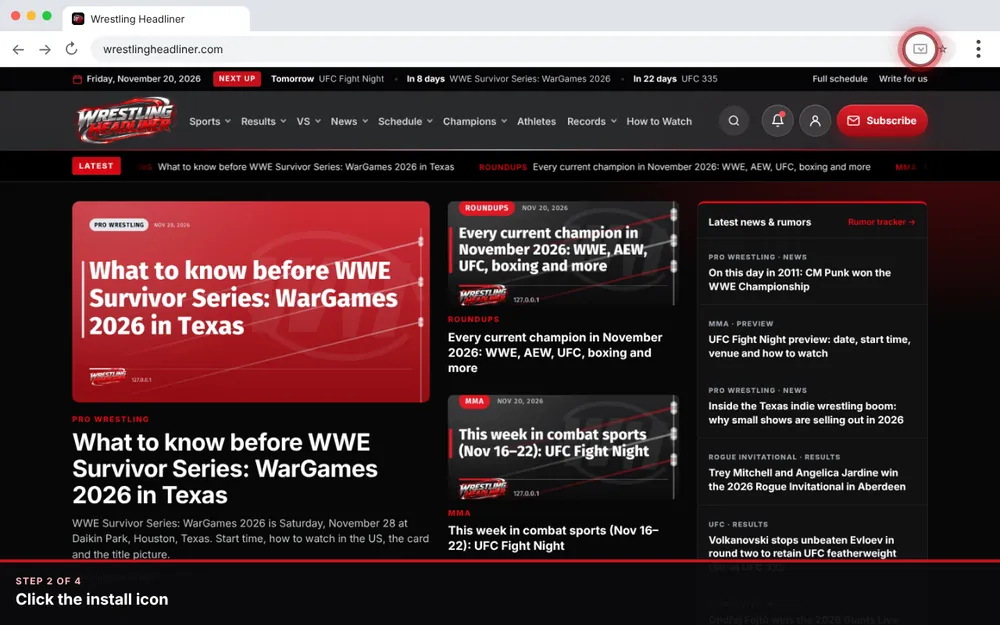 Step 2
Click the install icon
Click the install icon at the right end of the address bar (a screen with a down arrow). No icon? Open the ⋮ menu and look for Install or Apps — the wording varies by version.
-
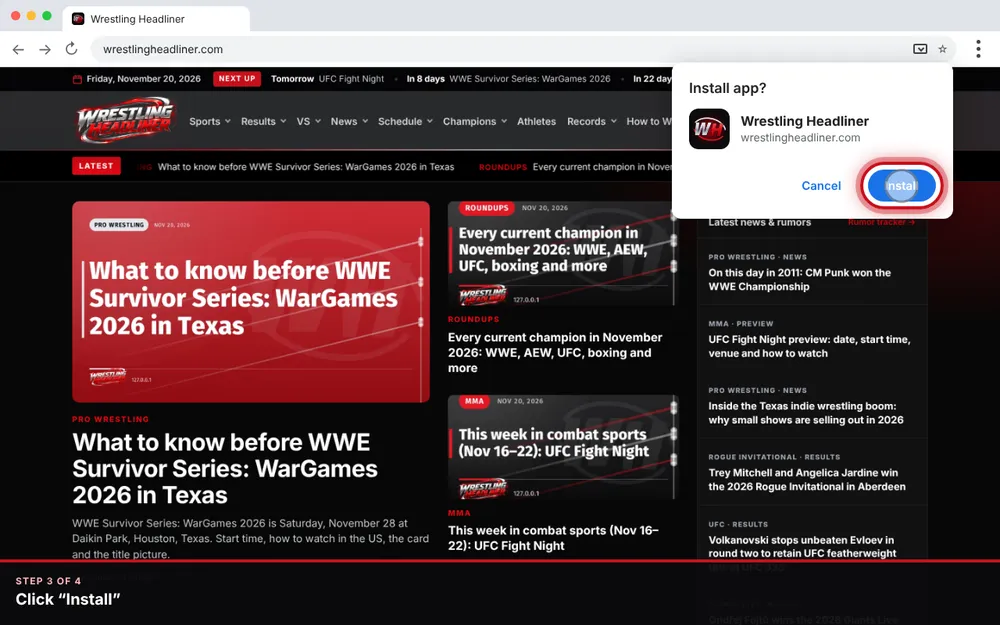 Step 3
Click “Install”
Click Install. The app opens in its own window and gets a Start menu, Dock or desktop shortcut.
-
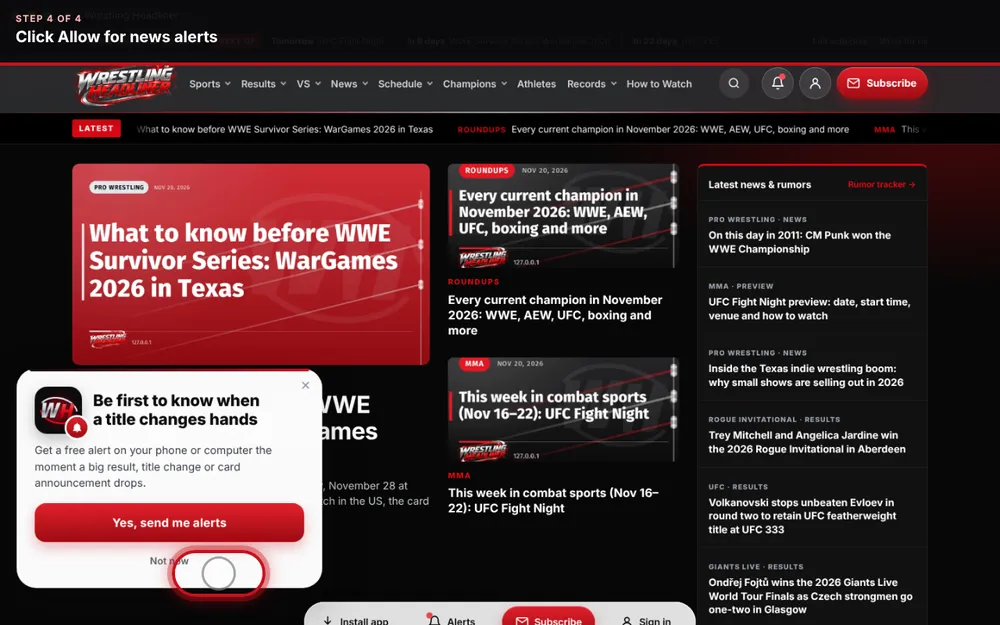 Step 4
Allow alerts
Click Get alerts → Allow to receive breaking news on your computer even when the site is closed.
Safari on Mac (macOS Sonoma or later): open the site, then choose File → Add to Dock.
Questions
Is the app free?
Yes. It is our website installed as an app (a “progressive web app”), so there is nothing to buy and no app store account needed.
How much space does it take?
Very little — usually under 1 MB, plus the pages you read, which are kept so they open faster and work offline.
Why does iPhone need the app for alerts?
Apple only allows website notifications for sites added to the Home Screen (iOS and iPadOS 16.4 or later). Once installed, open the app and tap Get alerts.
How do I stop alerts?
On a phone, long-press a notification or go to your phone's notification settings for Wrestling Headliner. On a computer, click the lock icon next to the address and set Notifications to Block.
How do I remove the app?
Remove it like any other app: long-press the icon and choose Remove / Uninstall. On a computer, open the app's menu and choose Uninstall.